Guide
How to Deploy an Antigravity Website with One Prompt
Paste Embarko’s deployment prompt into Antigravity’s agent and get a live HTTPS link. No Git or Dockerfile, plus the sandbox fix.
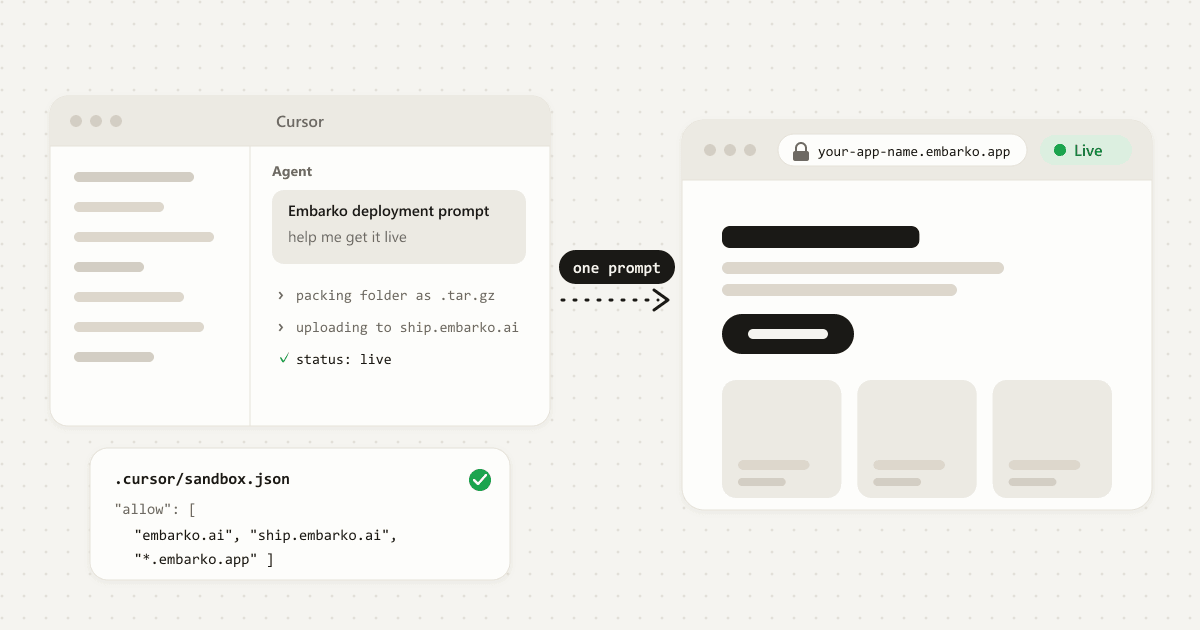
localhost:3000, where only you can open it. One prompt and one approval take it to a live link.To deploy a website built in Google Antigravity, paste Embarko’s deployment prompt into Antigravity’s agent.
Copy the prompt from embarko.ai, open your project and paste it. The agent packs the folder, uploads it and hands you a live HTTPS link. No Git repo or Dockerfile is needed. Antigravity may ask you to approve the upload, which is normal. Here is what to expect.
Key takeaways
- A website Antigravity builds runs on
localhost, which only your own computer can open. To share it, it needs a host. - The usual route asks for a GitHub repository, a hosting account, build settings and secret keys.
- With Embarko, the “one prompt” is the deployment prompt copied from embarko.ai. The agent packs the folder, uploads it and checks the status until the site is
live. - Antigravity’s terminal sandbox can block network access, so expect it to ask before it runs the upload. Read the command and approve it.
- Your first link needs no account. Press Keep within 24 hours and it stays at the same address.
01 — Localhost
Why your Antigravity website isn’t online yet
When Antigravity builds a website, it runs it on your own machine so you can try it. You’ll often see an address like localhost:3000. “Localhost” simply means “this computer”, so a link that starts with it only works for you. Send it to a friend and it points at their computer, where your site doesn’t exist.
Putting a site online is called deploying. It takes three things: a server that stays on, your site’s files copied onto it, and a public address anyone can open. Together that’s called hosting. Antigravity writes the site, but something else still has to host it.
02 — The usual road
Why deploying from Antigravity gets complicated
Antigravity hands you a project that works. The usual route to a host then asks for more than you may expect:
A GitHub account and a repository, plus enough Git to push the project.
A hosting service. Vercel, Netlify and others each have their own sign-up, dashboard and vocabulary.
Build and start settings, and sometimes a Dockerfile Antigravity didn’t write.
Secret keys kept out of the code and added as environment variables on the host.
Permission prompts and sandbox settings. Antigravity controls which terminal commands the agent may run and whether they get network access, so even a correct deploy command can stop and wait for you.
That’s fair work for a developer. For a small site Antigravity wrote in one sitting, it’s a long way from “it runs” to “here’s the link”.
03 — Side by side
The usual route compared with Embarko
Embarko is hosting that your AI tool runs for you. Antigravity’s agent packs the site, uploads it and checks that it’s live.
4 jobs on your plate
| The usual route | With Embarko |
|---|---|
| Push the project to a GitHub repository | No repository. The agent uploads the folder directly. |
| Sign up for a host and connect it | Your first link needs no account. |
| Configure the build, maybe add a Dockerfile | No Dockerfile. Embarko detects the language and builds the site itself. |
| Read the build logs yourself | The agent checks the status and hands you the link. |
Not sure your site fits? What you can deploy is in the FAQ, with what to do if yours needs something else.
04 — One prompt
What “one prompt” means in Antigravity
The one prompt is Embarko’s deployment prompt, a ready-made message that tells the agent how to deploy. It works because Antigravity’s agent can run terminal commands in your project.
I built a website, help me get it live on Embarko
Here’s what I’ll do. Which step needs the network?
Antigravity comes as an app, a command-line tool and an IDE, and Google’s docs describe the permission and sandbox settings for each. The agent follows the prompt, packs the folder, uploads it and reports the live link.
05 — The permission prompt
What to expect when Antigravity asks permission
The upload is a network call from a terminal command, and Antigravity controls both parts. What happens depends on which Antigravity you use:
Which Antigravity?
Its setting
Run outside the sandbox?
curl -X POST https://ship.embarko.ai/apps …
| Which Antigravity | What it does by default | What to do |
|---|---|---|
| The app on macOS or Linux | The Default preset runs terminal commands in a sandbox with no network access. A command that needs the network runs outside the sandbox and asks for your approval, unless an allow rule covers it. | When the agent asks to run the upload outside the sandbox, read the command and approve it. |
| The app on Windows | Windows uses Google’s previous permission system, where commands you haven’t allowed ask for approval. Terminal sandboxing is a preview option. | Read the upload command and approve it. |
| The CLI | The sandbox is off by default (enableTerminalSandbox is false). With it on, sandboxed commands get no network access by default. | Approve the command if the agent asks. With the sandbox on, approve the run outside the sandbox. |
| The IDE | Sandboxing is off by default. Terminal command auto execution decides whether the agent asks first. | If you turned on terminal sandboxing, also turn on its network access setting, or run the upload in your own terminal. Strict mode turns the sandbox on with network access denied. |
In the app on macOS and Linux, Google’s permission presets are Default, Request Review and Turbo, set under Settings → General → Permission Settings. Under Request Review the sandbox is off and terminal commands always ask. In the IDE, Terminal command auto execution has two options, Request Review and Always Proceed, which control whether the agent asks before running terminal commands.
You have three ways to get the upload through
| Option | What to do | What to know |
|---|---|---|
| Approve the command recommended | When Antigravity asks to run the upload, read the command and approve it. | Check that it only sends your project to ship.embarko.ai. A command approved to run outside the sandbox has no sandbox protection. |
| Allow Embarko’s domains | In the CLI, Google’s docs say domains allowed under read_url are added to the sandbox’s outbound allowlist. Allow embarko.ai, ship.embarko.ai and *.embarko.app. | Google’s sandbox page doesn’t show the exact rule format, so check its CLI permissions for the current syntax. |
| Run it yourself | Ask the agent for the deploy commands and run them in your own terminal. | Nothing is deployed until the upload succeeds, so don’t wait for a link before then. On Windows, ask for PowerShell versions that call curl.exe and tar.exe. |
Setting names and defaults are from Google’s Antigravity permissions, sandbox and settings pages as of October 2026. Check those pages if your version differs.
06 — Four steps
How to deploy from Antigravity, step by step
Four steps. Tap a number when you’ve done it. 0 of 4 done.
Before you start
- Your site runs locally.
- Antigravity’s agent can run terminal commands in your project.
-
Open the project in Antigravity
Open the folder that holds your site. That folder is what gets uploaded.
Open Folder- Pick a folder to look inside.
Which folder holds your site?
-
Copy the deployment prompt and paste it into the agent
Open embarko.ai and click the button that copies the prompt (Host your app on the home page, Copy deployment prompt on pricing), or copy it right here. Paste it into a new agent chat, then add one line:
deployment-prompt.txt What this does: tells Antigravity’s agent how to pack, upload and check your site.Deploy this app to Embarko — cloud hosting for small apps. No Dockerfile, no signup. Read https://embarko.ai/docs/quickstart.md and follow it. Nothing to install. Deploy anonymously first — no token, no account — then give me the live URL. Only once it's live, ask me for my email: Embarko mails back a token that makes the app permanent. Faster, if your tools let you install one: npx skills add embarko-ai/skill --skill embarko-deploy -g
I built a website, help me get it live on EmbarkoThe agent may ask how you want to sign in. Skip the connector option, because Antigravity doesn’t have one. Pick token by email (give your email, then paste the token from your inbox), or create a token at embarko.ai/app/tokens. With a token, the app goes into your account and is kept from the start. If you skip, the app still works for 24 hours. Authentication: three ways in explains each option.
How do you want to sign in?
Tap an option to see where it leads.
-
Approve the upload
Antigravity may ask before running the upload. Read the command, check that it only sends your project to
ship.embarko.ai, and approve it. The table above shows when to expect the prompt.The agent wants to run a command outside the sandboxcurl -X POST "https://ship.embarko.ai/apps" \ -H "X-App-Name: your-app-name" \ -F "source=@my-site.tar.gz"Read it first. Where does it send your project?
- 0:00packed my-site.tar.gz, without node_modules, .git, .env
- 0:02uploaded · 202 Accepted · build started, not live yet
- 0:12status: building · checking again in about 10 s
- 0:22status: live · your-app-name.embarko.app
The agent packs the project (leaving out
node_modules,.gitand.envfiles), uploads it, and checks the status about every 10 seconds until it reacheslive. A static site is usually live in the first reply, and a server app builds first, so it takes longer.The app name becomes your address: 3 to 63 characters (lowercase letters, numbers and dashes, no dash at the start or end), unique across Embarko. If it’s taken, the agent picks another. See app names.
- A first reply of “202 Accepted” only means the build has started. See 202 Accepted is not live.
- If the upload fails with a network error, the sandbox is blocking it and nothing was deployed. See if something goes wrong.
-
Open your link and keep it
The agent gives you the address,
your-app-name. Open it and click around. A link made without a token lasts 24 hours with no reminder email, though an HTML page shows a countdown banner. The agent’s first reply includes a claim link. Open it, sign in or sign up, pick a workspace and press Keep, and the app stays at the same address. The link works once and only until the deadline, so keep that message. If you’ve lost it, ask the agent to make it permanent with a token..embarko.app Live at
your-app-name.embarko.app. To keep it, open the claim link before the deadline.Sign in or sign upPick a workspaceKeep your-app-name? It stays at the same address.Kept.your-app-name.embarko.appstays at the same address.Open the claim link, then sign in, pick a workspace and press Keep.
localhost:3000your-app-name.embarko.appOnly you can open it
Finish the four steps and your site gets a live link.
Stuck at any step? Failed deploys often come down to a blocked upload, a missing key or setting, or a site listening on the wrong port.
Open the fix list07 — Later
Changing the site later
Ask the agent to redeploy with the same name. A kept app needs your deploy token for every later deploy. If you pressed Keep on the claim link, the page you land on gives you a prompt that carries a token, so paste it into the agent’s chat once. If you kept the app with a token, the agent already has it. You can also create one at embarko.ai/app/tokens. A kept app keeps deployment history and can roll back to a recent build. Rollback restores code, never data.
Redeploy my site to Embarko with the same app name.
To use an API key, keep the app first, then ask the agent to set it as an environment variable and apply it. A write alone doesn’t reach the running app. Static sites can’t have environment variables. If your site saves anything, such as form entries or a SQLite file, it must write under DATA_DIR, because everything else is wiped on each redeploy.
Since Embarko isn’t where your code lives, keep your own copy too. A local Git repository is enough.
08 — Questions
FAQ
What is Antigravity’s terminal sandbox?
It’s a restricted space where Antigravity can run the agent’s terminal commands. By default in the app on macOS and Linux, commands run there with no network access, so a command that needs the network, such as an upload, runs outside it and asks for your approval. The CLI and IDE have the sandbox off by default.
Can Antigravity deploy my website?
Yes, if its agent can run terminal commands in your project. It follows Embarko’s deployment prompt: it packs the folder, uploads it and returns a live HTTPS link. Copy the prompt from embarko.ai, paste it into the agent and approve the command if Antigravity asks. No Git repo or Dockerfile is needed.
What can I deploy from Antigravity?
Embarko suits small web apps. Here’s how common Antigravity projects line up, and what to do if yours needs something else.
| What Antigravity built | Fits? | What to know |
|---|---|---|
| A plain website | Yes | Keep index.html at the top of the folder. Published as static files, usually live straight away. |
| A Node.js app | Yes | package.json at the top. Read the port from PORT and listen on 0.0.0.0. |
| A Python app | Yes | requirements.txt or pyproject.toml at the top. |
| A site with a build step (Vite, Create React App) | Yes | Built first, then run as a server app. |
| A small database | Yes, SQLite | Save the file under DATA_DIR, the folder that survives redeploys. Keep your own copy of important data. |
| A frontend and a backend in one project | Two apps | One deploy is one app. Deploy each folder as its own app. |
| Postgres or MySQL | Another route | Embarko has no managed database. Use SQLite for small data, or host that app where its database lives. |
| Live updates (WebSockets) | Another route | Use regular HTTP polling instead. |
| Scheduled jobs | Another route | Run them elsewhere and have them call your site. |
| Heavy processing or a GPU | Another route | Run that part elsewhere. Apps get 256MB of memory and no GPU. |
Delete any Dockerfile Antigravity added. Embarko builds the site itself and rejects an upload that includes one.
Does Embarko officially support Antigravity?
Not by name. Antigravity isn’t mentioned on Embarko’s pages and has no Embarko connector. Only Claude has one. Embarko’s connectors page says every AI tool can still deploy by pasting the deployment prompt, and that works in Antigravity when its agent can run terminal commands.
Why does Antigravity ask permission before deploying?
By default, the app on macOS and Linux runs commands in a sandbox with no network access, so the agent asks to run the upload outside it. Read the command, check that it only sends your project to ship.embarko.ai, and approve it. On Request Review, it asks before any terminal command.
Do I need GitHub to deploy from Antigravity?
No. Embarko takes the project folder directly: the agent packs it and uploads it, so there’s no repo to create or connect. Embarko isn’t where your code lives, so keep your own copy, such as a local Git repository or a copy of the folder, so you can redeploy an older version later.
Will my site stay online?
Once you press Keep, yes. An app deployed without a token is deleted 24 hours after its first deploy. Open the claim link from the agent’s first reply and sign in to keep it, or ask the agent to claim it with a token. The link stays the same.
Is it safe to put my Antigravity site online?
Keep secret keys out of your project files. The agent leaves .env files out of the archive, and once you’ve pressed Keep you can add keys as environment variables, which Embarko stores encrypted and nobody can read back. Also remember that anyone with your link can open the site, so if it uses your AI key, set a spending limit with your AI provider if they offer one.
Is it free?
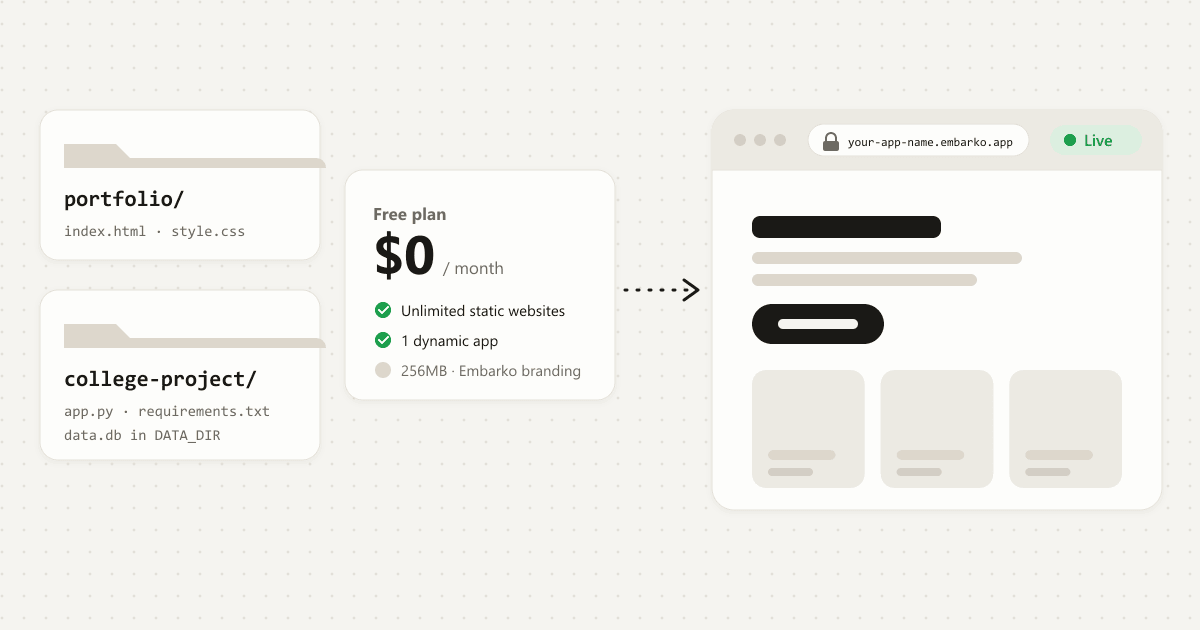
There’s a Free plan with unlimited static websites and 1 dynamic app. Creator is $9/month billed yearly for up to 5 dynamic apps, and Team is $23/month billed yearly for up to 20. Prices are from embarko.ai/pricing and can change.
Only you can open it
Your turn
Built something with AI? Ask it to deploy to Embarko.
Copy the prompt, paste it into Antigravity’s agent, and get a live link without creating a repo.
- Copy
- Paste into Antigravity’s agent
- Approve, then share your link
Keep reading: How to deploy an AI app · Deploy from Cursor · Agent quickstart · Troubleshooting reference · Antigravity permissions · Pricing