Guide
How to Deploy an AI App: From idea to live link
Built an app with AI? Learn how to deploy it: copy one prompt, paste it into Claude, Cursor or Antigravity and share a live link. No coding, no GitHub.
localhost:3000, where only you can open it. Scroll, and we’ll take it the rest of the way.Your app works on your laptop. Now you want to send someone a link. Here’s what’s going on, what your options are, and the quickest way to get there.
To deploy an AI-built app, you move it from your own computer to a server that stays online, which gives it a public web address.
The quickest way is to let your AI tool do the move for you. With Embarko, you copy one prompt from embarko.ai, paste it into the tool you built your app in, and it hands you a link like your-app-name. No GitHub, no Docker, no hosting course.
Key takeaways
- An AI-built app runs on localhost, which only your own computer can open.
- Deploying means putting it on a server with a public address.
- The usual route needs a GitHub repo, a hosting account, build settings and secret keys.
- With Embarko, your AI tool does the upload from one prompt, and you get a live link.
01 — The journey
The whole journey, from idea to live link
Every AI-built app follows the same four stages. Most people sail through the first two and stall at the third.
-
1
Describe it
You tell your AI tool what you want, in plain words.
-
2
Try it
The tool builds it and runs it on your computer, so you can click around.
-
3
Put it online You are here
This is the stage where projects get stuck. It’s what the rest of this guide is about.
-
4
Share it
You send the link, get feedback and keep improving the app.
02 — Localhost
Why your AI-built app only works on your computer
When Claude, Cursor or another AI tool builds your app, it runs it on your own machine so you can try it. If you look at the address bar, you’ll often see something like localhost:3000.
“Localhost” is simply the name for “this computer.” A link that starts with it only means something on the machine that made it. Send it to a friend and it points at their computer, where your app doesn’t exist.
Try it. Drag a link onto your friend’s phone, or tap one:
On your computer
localhost:3000
Only you can open it. It stops when you close your laptop.
On the internet
your-app-name
Anyone with the link can open it, any time.
03 — Deploying
What “deploying” actually means
Deploying sounds technical, but it’s three simple things, and you only ever need to think about them once:
-
1
A computer that stays on
Called a server. It sits in a data center and never goes to sleep, so your app is always reachable.
-
2
Your app’s files on it
Your project gets packed up and copied there. This is the “upload” part.
-
3
A public address
A link anyone can type or tap. Hosting companies give you one for free or by default.
That whole bundle is called hosting. The only real question is how you get your app from your computer onto a host. There are a few ways.
04 — The hard part
Why deploying is the part where people get stuck
Building the app with AI took an afternoon. Putting it online is a different kind of work, and it’s the point where a lot of finished projects stall. The usual route asks you to learn things you never planned to:
-
Make a GitHub account and a repository. Then learn enough Git to push your code there, and keep it in sync every time you change something.
-
Pick a hosting service and sign up. Vercel, Netlify, DigitalOcean and others all work differently, and each has its own dashboard and vocabulary.
-
Tell it how to build and start your app. That means build commands, start commands, a framework preset, and sometimes a Dockerfile you didn’t ask for.
-
Get the port and the address right. An app that listens on
localhost:3000builds fine and then shows nothing online, and the error doesn’t tell you why. -
Handle secret keys. Your ChatGPT, Gemini or Claude key must live in “environment variables” on the host, never in the code, or it can leak.
-
Read the build logs when it fails. They’re written for developers, and most first deploys fail at least once.
None of this is hard for a developer. For everyone else, it can easily swallow an evening, and the thing you built is still sitting on your laptop at the end of it.
05 — Your options
Three ways to deploy an AI-built app
-
A Git repository and a host
Push your code to GitHub and connect it to Vercel, Netlify or DigitalOcean.
Best for projects you keep changing or share with a team.
- Your computer
- GitHub repo
- Push the code
- Connect a host
- Build settings
- Live link
-
The command line
Pack and upload the project yourself.
Best if you like working in a terminal.
- Your computer
- Pack it
- Upload it
- Check it’s live
- Live link
-
Your AI tool
Your tool packs, uploads and checks the app. With Embarko, that’s one prompt.
Best for a first deploy or a quick share.
- Your computer
- One prompt
- Live link
Three roads, one destination. Same live link. The AI-tool road has the fewest stops.
06 — The Embarko way
The Embarko way: one prompt instead of all of that
Embarko is hosting that your AI tool runs for you. The tool that built your app also packs it, uploads it and checks that it’s live, so most of the list above simply doesn’t come up.
| The usual route | With Embarko |
|---|---|
| Create a GitHub account and push a repository | No repository. Your tool uploads the project folder directly. |
| Sign up and learn a hosting dashboard | Your first link doesn’t need an account. |
| Set build commands and write a Dockerfile | No Dockerfile. Embarko builds the app itself. |
| Watch the build and decode the logs | Your tool checks that it’s live and sends you the link. |
| Learn the hosting terms first | Paste one prompt, then approve and keep. |
For a long-running project with a team, Git-based hosting is a good fit. For getting something you just built in front of people, one prompt is hard to beat.
07 — Six steps
Deploy with one prompt
Six steps. Tap a number when you’ve done it. 0 of 6 done.
Before you start
- Your app’s folder is open in your AI tool.
- The tool can run commands and reach the internet. It asks before it does.
- An email address, only if you pick email sign-in.
-
Grab the prompt
Go to embarko.ai and tap Copy deployment prompt on the home page or the pricing page, or copy it right here. The prompt is a ready-made message that tells your AI tool how to put your app online. You don’t write it, you just copy it.
deployment-prompt.txt What this does: tells your AI tool everything it needs to put your app online.Deploy this app to Embarko — cloud hosting for small apps. No Dockerfile, no signup. Read https://embarko.ai/docs/quickstart.md and follow it. Nothing to install. Deploy anonymously first — no token, no account — then give me the live URL. Only once it's live, ask me for my email: Embarko mails back a token that makes the app permanent. Faster, if your tools let you install one: npx skills add embarko-ai/skill --skill embarko-deploy -g
-
Hand it to your tool
The steps work in Claude, Cursor, Antigravity, Codex, Replit, Lovable, Bolt, v0, ChatGPT or Gemini. Where did you build your app? Pick it below and we’ll show only your steps. We’ll remember your choice.
Built in Claude
- Paste the prompt into Claude and press Enter.
- Claude uploads your app and checks that it’s live.
- It sends you a link. Open it.
You’ll know it worked when your app opens at
your-app-name. Tip: add Embarko’s skill once, and Claude will know how to deploy whenever you ask. More in the full Claude guide..embarko.app Built in Cursor
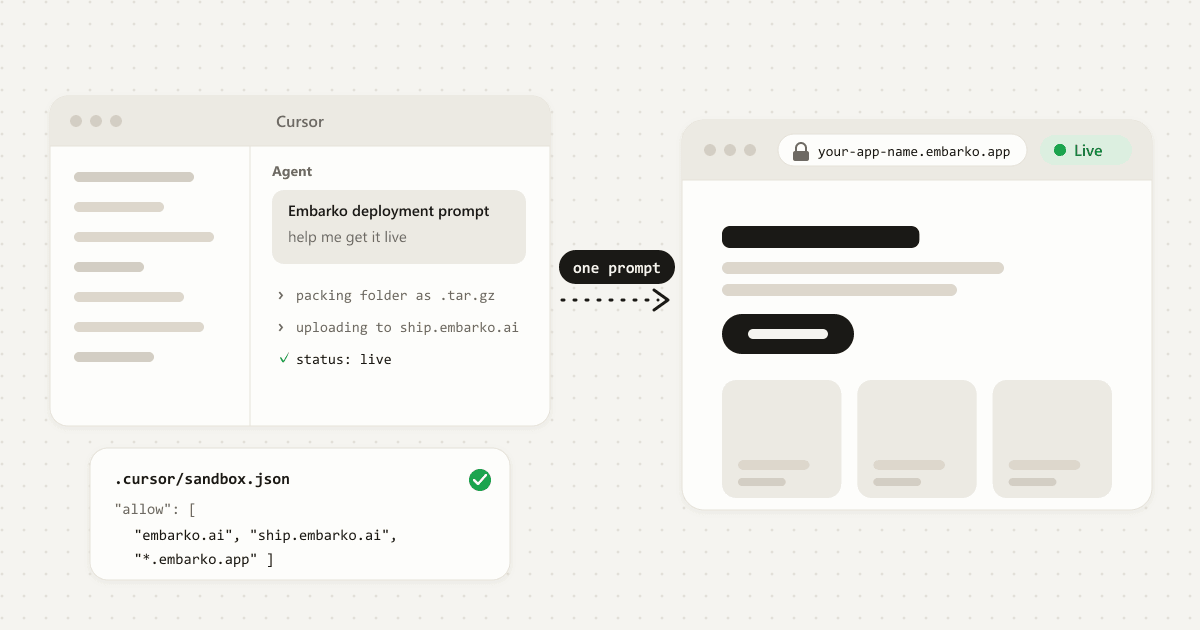
- Open Cursor’s Agent chat, paste the prompt and press Enter.
- Cursor packs your project, uploads it and checks that it’s live. If it asks to run a command, allow it.
- It sends you a link. Open it.
You’ll know it worked when your app opens at
your-app-name. If Cursor’s sandbox blocks the upload, the full Cursor guide has the fix..embarko.app Built in Antigravity
- Open the agent panel in Antigravity, paste the prompt and press Enter.
- The agent uploads your app and checks that it’s live. Approve any command it asks to run.
- It sends you a link. Open it.
You’ll know it worked when your app opens at
your-app-name..embarko.app Built in Codex
- Paste the prompt into Codex, in the app, your editor or the terminal, and press Enter.
- Codex uploads your app and checks that it’s live. If it asks for network access, allow it for this task.
- It sends you a link. Open it.
You’ll know it worked when your app opens at
your-app-name..embarko.app Built in Replit
- Open your project and paste the prompt into Replit Agent. Press Enter.
- The agent uploads your app to Embarko and checks that it’s live.
- It sends you a link. Open it.
You’ll know it worked when your app opens at
your-app-name. More in Deploy a Replit app for free..embarko.app Built in Lovable, Bolt or v0
- Download or export your project as a folder. Each builder has an option for it.
- Open that folder in an AI tool that works with files, like Claude or Cursor, then paste the prompt and press Enter.
- It uploads your app and sends you a link. Open it.
You’ll know it worked when your app opens at
your-app-name..embarko.app Built in ChatGPT or Gemini
- Paste the prompt into the chat that built your app and press Enter.
- If the chat can reach the internet, it uploads your app and checks that it’s live. If it can’t, it tells you and offers another way, like a short script to run on your computer.
- It sends you a link. Open it.
You’ll know it worked when your app opens at
your-app-name..embarko.app If your tool asks how to sign in, choose the email option: give your email, then paste the code Embarko sends you back into the chat.
-
Your tool does the work
It packs your project (leaving out
node_modules,.gitand.envfiles), uploads it, checks about every 10 seconds until the app is live, then hands you the link. -
Approve what it asks
You allow the upload command (read it first), choose email sign-in and paste the token Embarko sends you, then open the “keep this app” link at the end.
Your AI tool wants to run a commandupload my-app to Embarko
Read it first, then allow.- Upload command allowed
- Email sign-in, then paste the token
- Open the “keep this app” link
-
Confirm it worked
Your tool reports that the app is live and gives you a link ending in
.embarko.app. Open it, click the main pages, and try any form or button that talks to a server. A first reply of “202 Accepted” only means the build has started. -
Keep it
A link made without signing in lasts 24 hours, with no reminder email, so press Keep on the “keep this app” link your tool shares (or tell it “Make my Embarko app permanent”) and it stays at the same address. After you press Keep, Embarko gives you a prompt that carries your token. Paste it into your tool once, and “Update my Embarko app.” works from then on.
Make my Embarko app permanent.
localhost:3000your-app-name.embarko.appOnly you can open it
Finish the six steps and your app gets a live link.
Stuck at any step? Most failed deploys come from an address that only works on your computer, a missing setting or the wrong port.
Open the fix list08 — After it’s live
After it’s live
To change something, ask your tool:
Update my Embarko app.
To add an AI key, never put it in your project files. Once you’ve pressed Keep, ask:
Add my AI key to my Embarko app as a secret.
Plain websites can’t use secrets, so keep their settings in the site’s files. A custom domain is listed under the paid Creator plan (see pricing). You’ll need to own the domain, and your tool tells you the one DNS record to add. Then share your link with anyone.
09 — Questions
FAQ
What does localhost mean?
Localhost is the name for “this computer.” When your AI tool runs your app at an address like localhost:3000, only the machine running it can open that link. Send it to a friend and it points at their computer, where your app doesn’t exist.
What does it mean to deploy an app?
Deploying means moving your app from your computer to a server that stays online, which gives it a public web address anyone can open, any time. The server, your app’s files on it and the address together are called hosting.
How do I deploy an AI app?
Copy Embarko’s deployment prompt, paste it into the AI tool you built the app with and press Enter. The tool packs your app, uploads it, checks that it’s live and sends you a link like your-app-name. The three steps are above.
Do I need to know how to code?
No. You copy one prompt and paste it. The AI tool that built your app does the packing and uploading, and if a deploy fails, it reads the error, fixes it and tries again.
Do I need GitHub?
No. Your AI tool uploads your project folder straight to Embarko, so there’s no repository to create and nothing to keep in sync. For a long-running project with a team, Git-based hosting is still a good fit.
Is it free?
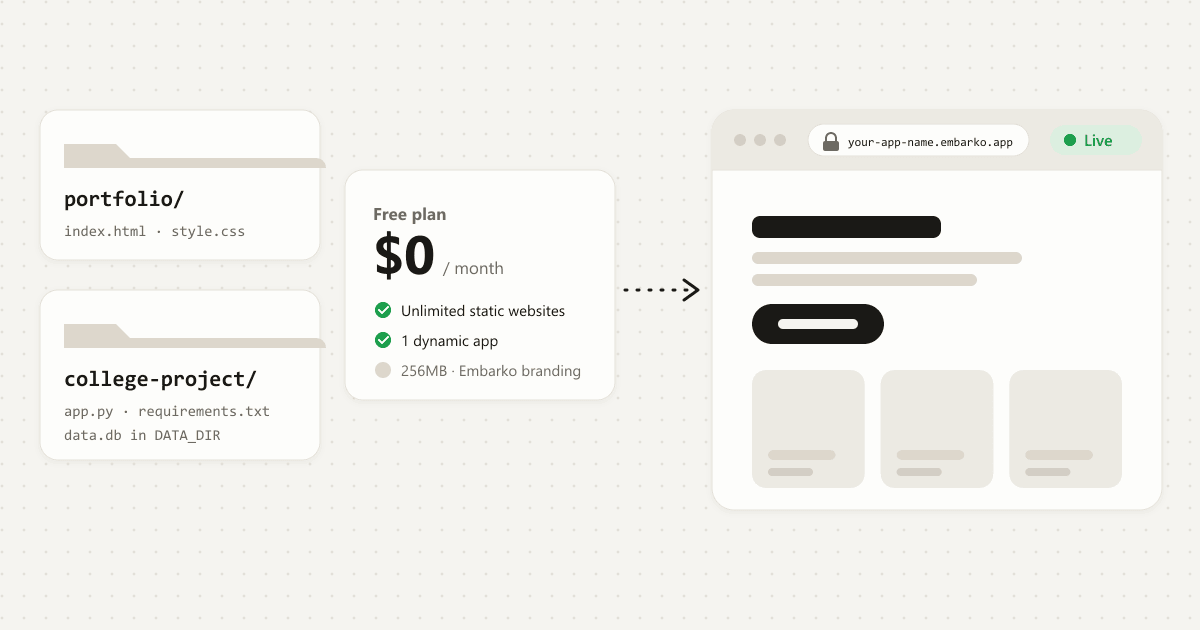
You can start for free. Your first link doesn’t need an account (it lasts 24 hours until you keep it), and the Free plan costs $0 a month with unlimited static websites, one dynamic app and your own Embarko link. Paid plans add more apps, your own domain and automatic backups. See pricing.
Where do I put my AI key?
Never in your code. A ChatGPT, Gemini or Claude key belongs in environment variables on the host, where your app can read it but visitors can’t. Ask your AI tool to add the key to your Embarko app as an environment variable. Embarko encrypts environment variables and only exposes them to your own app.
What kinds of apps can I deploy to Embarko?
Plain websites, Node.js apps such as Express, Python apps such as Flask or FastAPI, and React or Vite apps with a build step. Chat apps that call ChatGPT, Gemini or Claude are a normal fit. A frontend and a backend are two apps, so deploy each folder on its own. Apps that need a managed Postgres or MySQL database, live WebSocket updates, scheduled jobs, or your own AI model need another route for that part.
| What your AI built | Fits? | What to know |
|---|---|---|
| A plain website | Yes | Keep index.html at the top of the folder. |
| A Node.js app | Yes | package.json at the top. Read the port from PORT and listen on 0.0.0.0. |
| A Python app | Yes | requirements.txt or pyproject.toml at the top. |
| A React or Vite app | Yes | Built first, then run as a server app. |
| A small database | Yes, SQLite | Save the SQLite file under DATA_DIR, the folder that survives redeploys. Keep your own copy of important data. |
| A frontend and a backend in one project | Two apps | Deploy each folder as its own app. If you see 422 app_nested_in_subdirectory, deploy the folder it names. |
A Claude artifact that uses window.storage |
Swap it | Replace window.storage with SQLite under DATA_DIR. |
| Postgres or MySQL | Another route | Use SQLite for small data, or host that app where its database lives. |
| Live updates (WebSockets) | Another route | Use regular HTTP polling instead. |
| Scheduled jobs | Another route | Run them elsewhere and have them call your app. |
| Your own AI model | Another route | Host the model elsewhere and let your app call it. Apps that call ChatGPT, Gemini or Claude are fine. |
Not sure which one you have? Ask your AI tool:
Does this app use a database, live updates or scheduled jobs?
How do I know my app deployed successfully?
Your tool reports that the app is live and gives you a link ending in .embarko.app. Open it, click through the main pages and try anything that talks to a server, such as a form or a button. A first reply of 202 Accepted only means the build has started.
Which AI tools can I deploy from?
Claude, Cursor, Antigravity, Codex, GitHub Copilot, Gemini, Cline, Replit and other AI agents that can work with your project’s files. If you built in Lovable, Bolt or v0, export your project and deploy it from one of those agents.
Is it safe to put an AI-built app online?
Embarko runs every app in its own isolated environment on infrastructure certified to ISO/IEC 27001 (the certification is held by the infrastructure provider), serves it over HTTPS and encrypts your secret keys. Your part: keep keys out of the code, and remember that anyone with the link can open the app, so don’t put anything in it you wouldn’t show a stranger. More on security.
How do I update my app later?
Ask your AI tool to deploy again. Redeploying under the same name updates the app at the same address, and the data your app stores is kept between deploys. Each deploy is recorded, so you can roll back to the previous version if something breaks.
Only you can open it
Your turn
Ready to get your app a link?
Copy the prompt, paste it into your AI tool and share what you built.
- Copy
- Paste into your agent
- Share your link
Keep reading: Free hosting for students · Deploy an app without GitHub · Deploy a Replit app for free